


- OVR Toolkit *only* supports Windows 10 and 11! Not Windows 7 or Windows 8. Windows 8.1 'may' work but is unsupported!
- OVR Toolkit *requires* you to have a Windows account with admin permissions and that you run Steam on this same account.
- Oculus users may experience decreased performance as games are required to be ran through SteamVR rather than Oculus Runtime. (Read the 'Important Stuff' section!)
Oculus Rift/S or Oculus Quest/2 users - Read the 'Important Stuff' section before purchase!
Overview
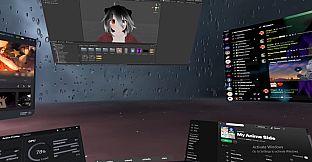
OVR Toolkit is a SteamVR Overlay utility designed to make viewing the desktop within VR easy and intuitive. OVR Toolkit allows you to display specific desktop windows, quickly select between them, use intuitive controls to navigate those windows, and use a virtual keyboard to type.
Ever wanted to reply to Discord messages without taking off your headset or looking through a nose piece? Ever wanted to pause that song you're listening to without fumbling around on your keyboard? Now you can with ease!
OVR Toolkit is compatible with all SteamVR compatible headsets. The utility is being built with the Vive/Vive Pro, Valve Index, and Oculus Rift/Rift S in mind though WMR headsets are compatible too. (Compatible controllers require a trigger and grip)
Features
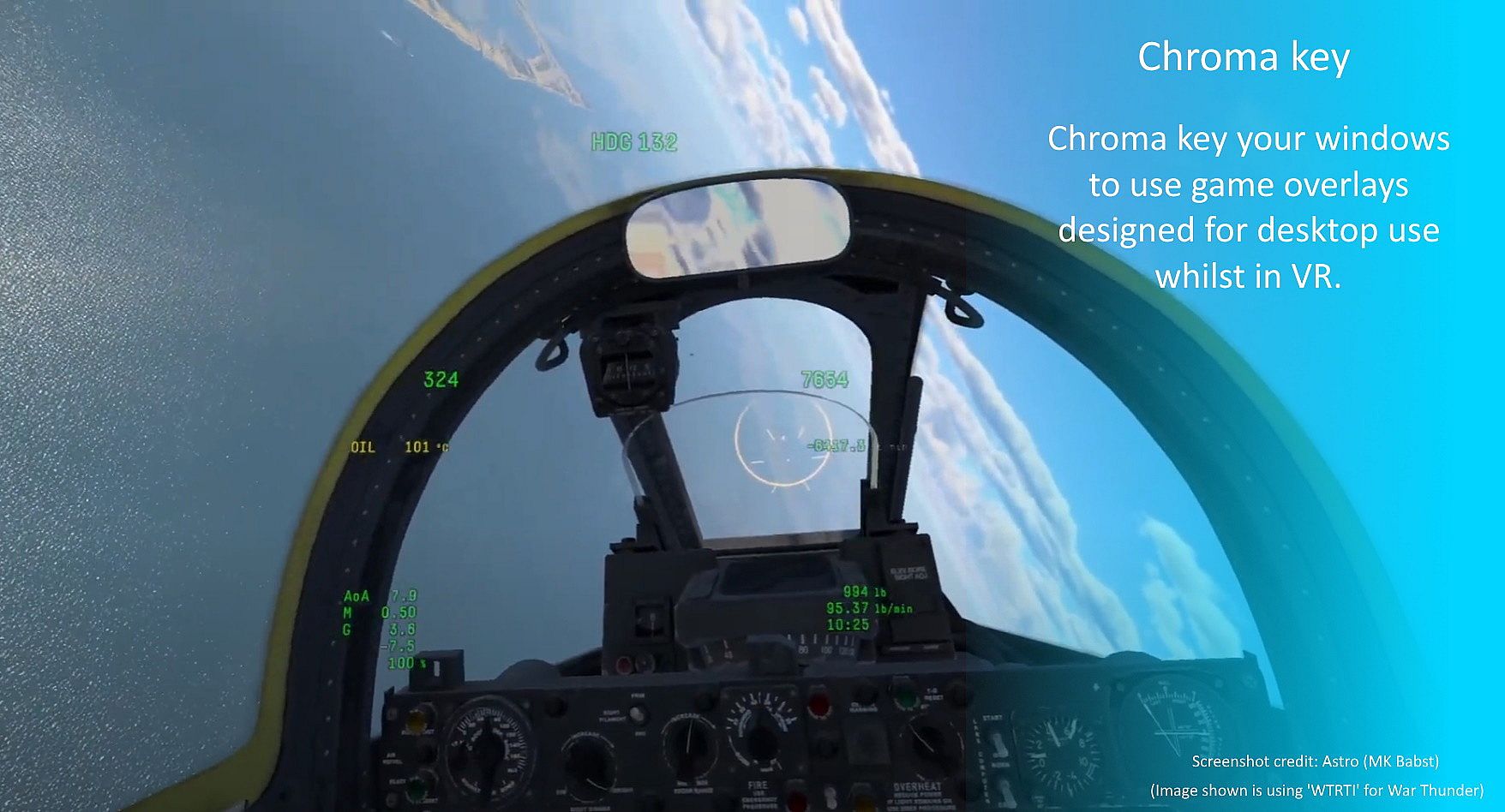
- Overlays over almost all SteamVR applications: OVR Toolkit will display on top of all your favorite titles! (VRChat, Beat Saber, mostly all SteamVR titles, etc.)
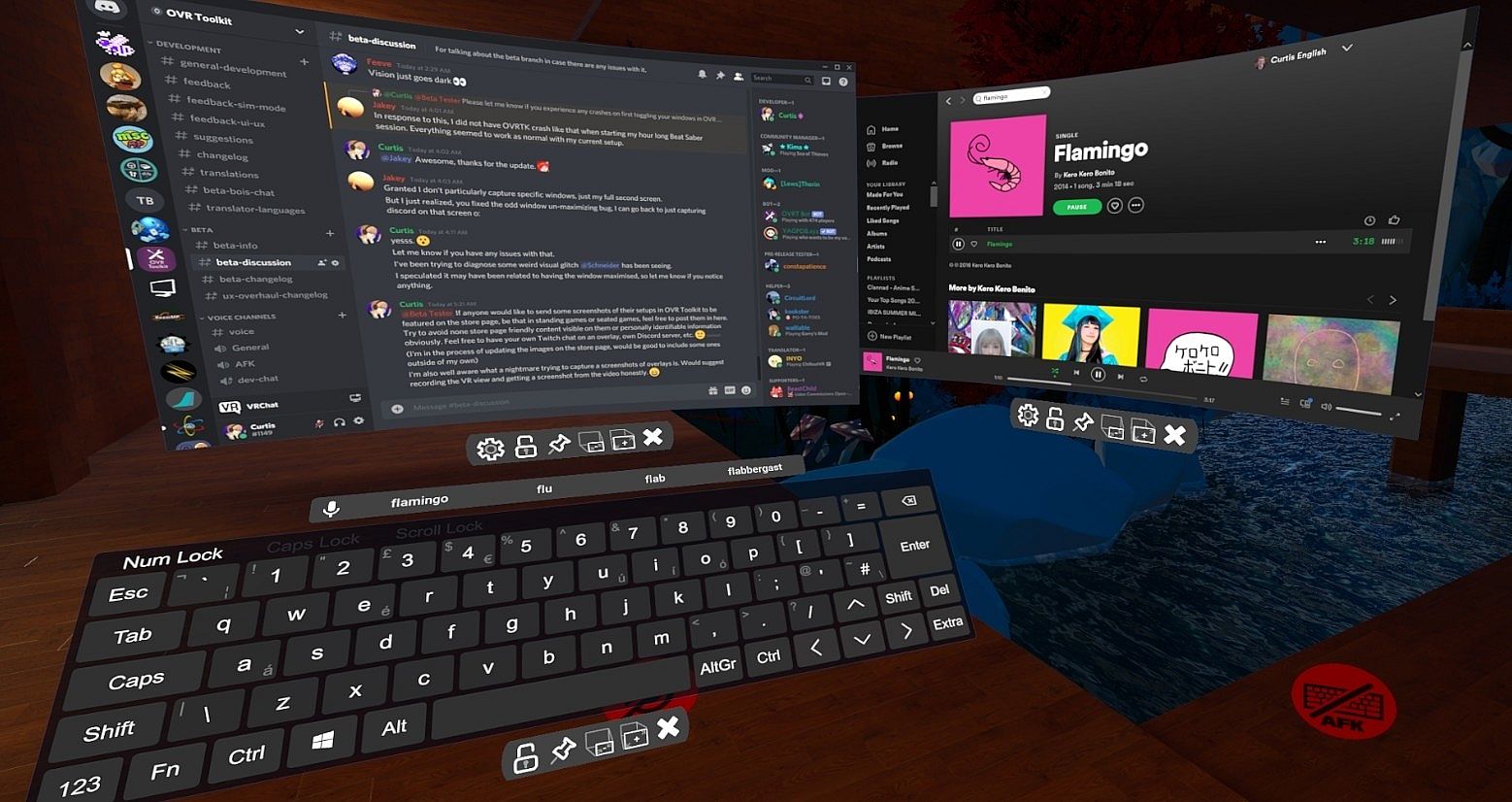
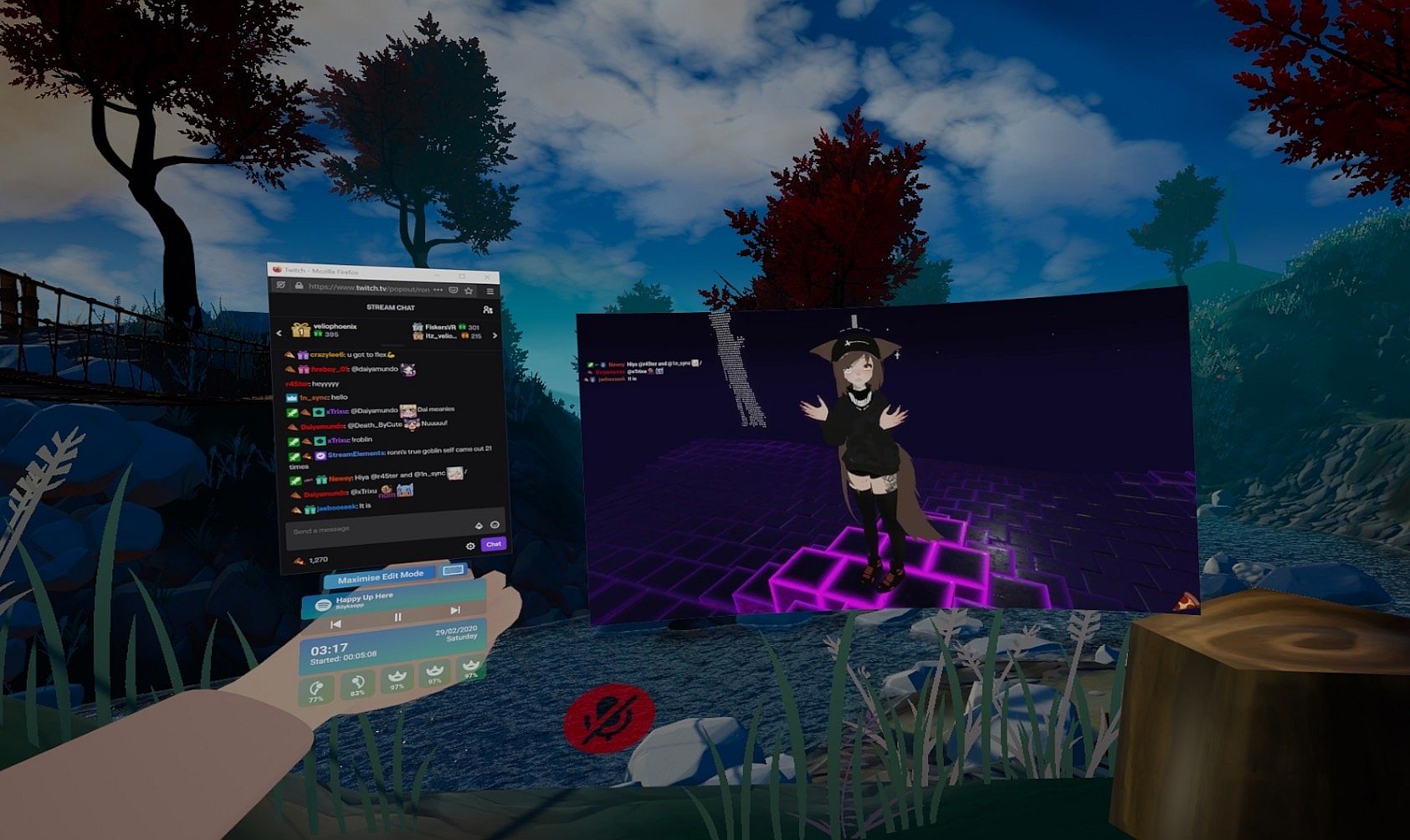
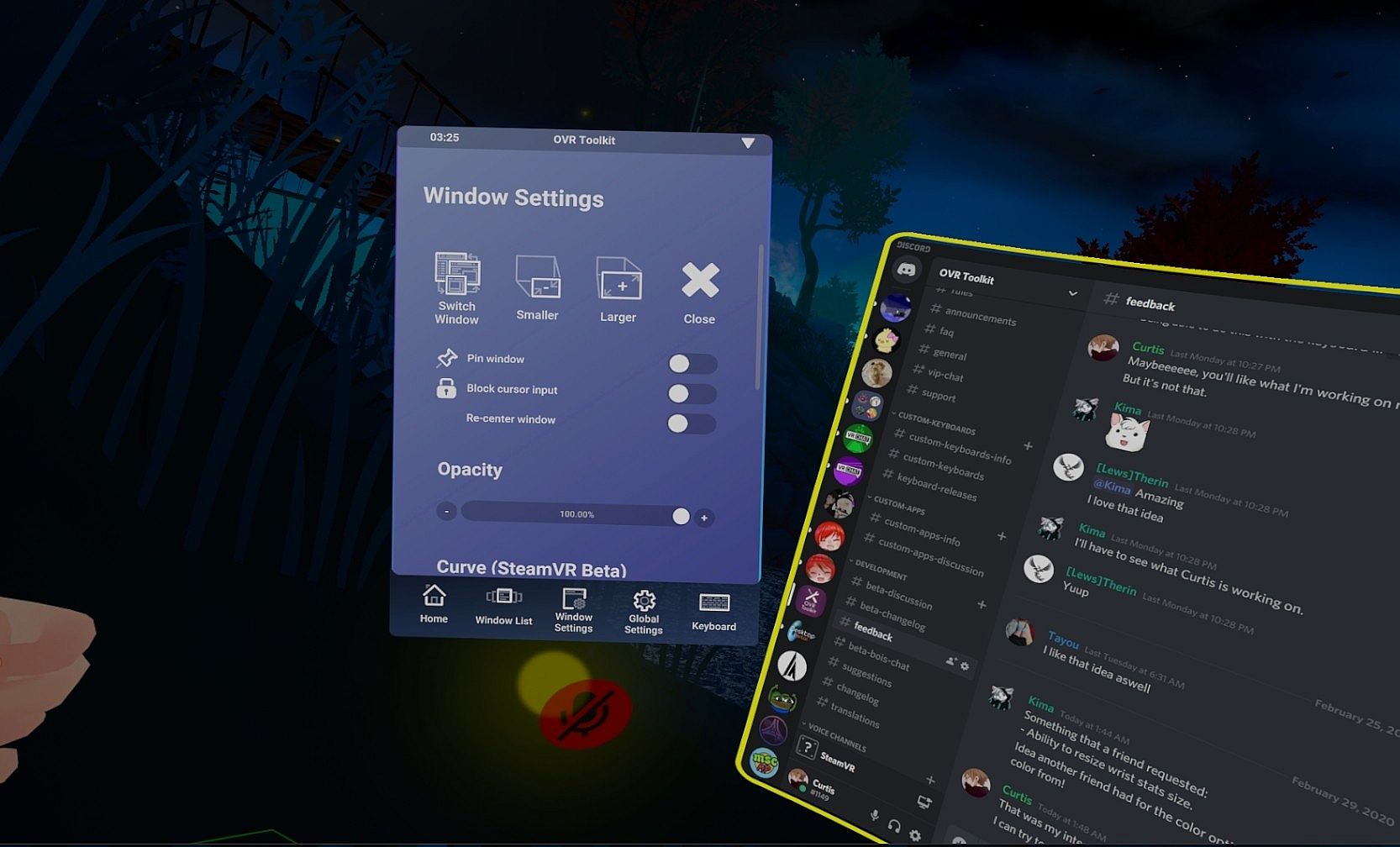
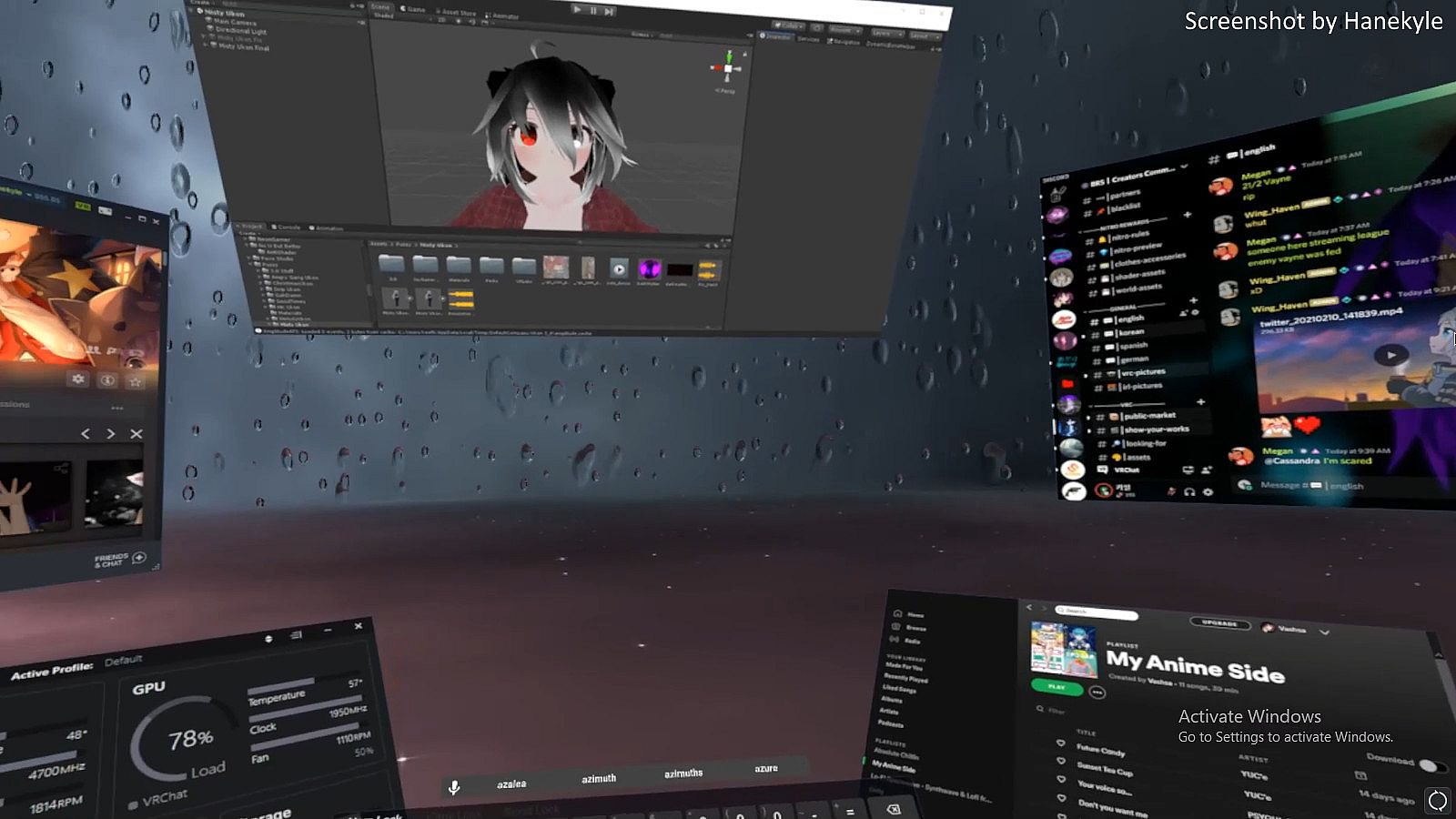
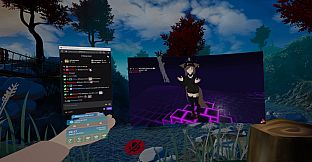
- Desktop window viewing: Allows you to select a desktop window and display it above your hand, or pin it in the world around you.
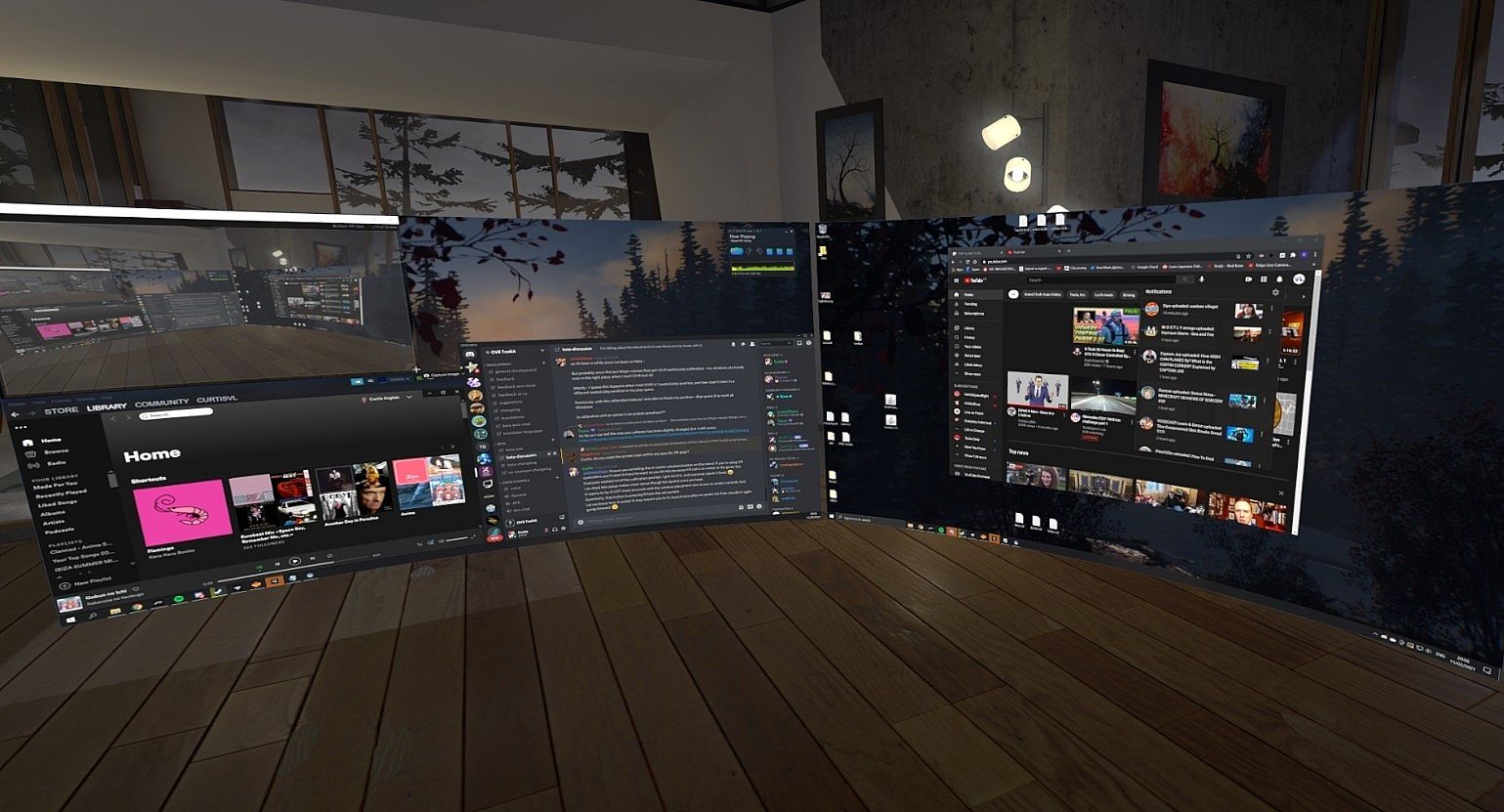
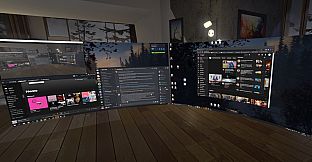
- Multiple desktop windows: Create multiple different windows and place them in the world around you.
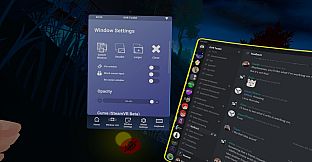
- Attach windows to tracked devices: You can make windows move around with either your left or right controllers, headset, or have them stationary in the world.
- Curved overlays: Improves readability of large windows in VR by wrapping them around you by a configurable amount? Now you can! (Or you can make the window into a wall by curving it to the max, I don't judge!)
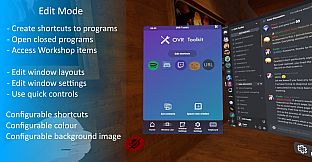
- Window re-centering: Optionally enable window re-centering, this will make window's re-appear in front of you when you open Edit Mode. This is useful to easily pull windows to you so you can use them.
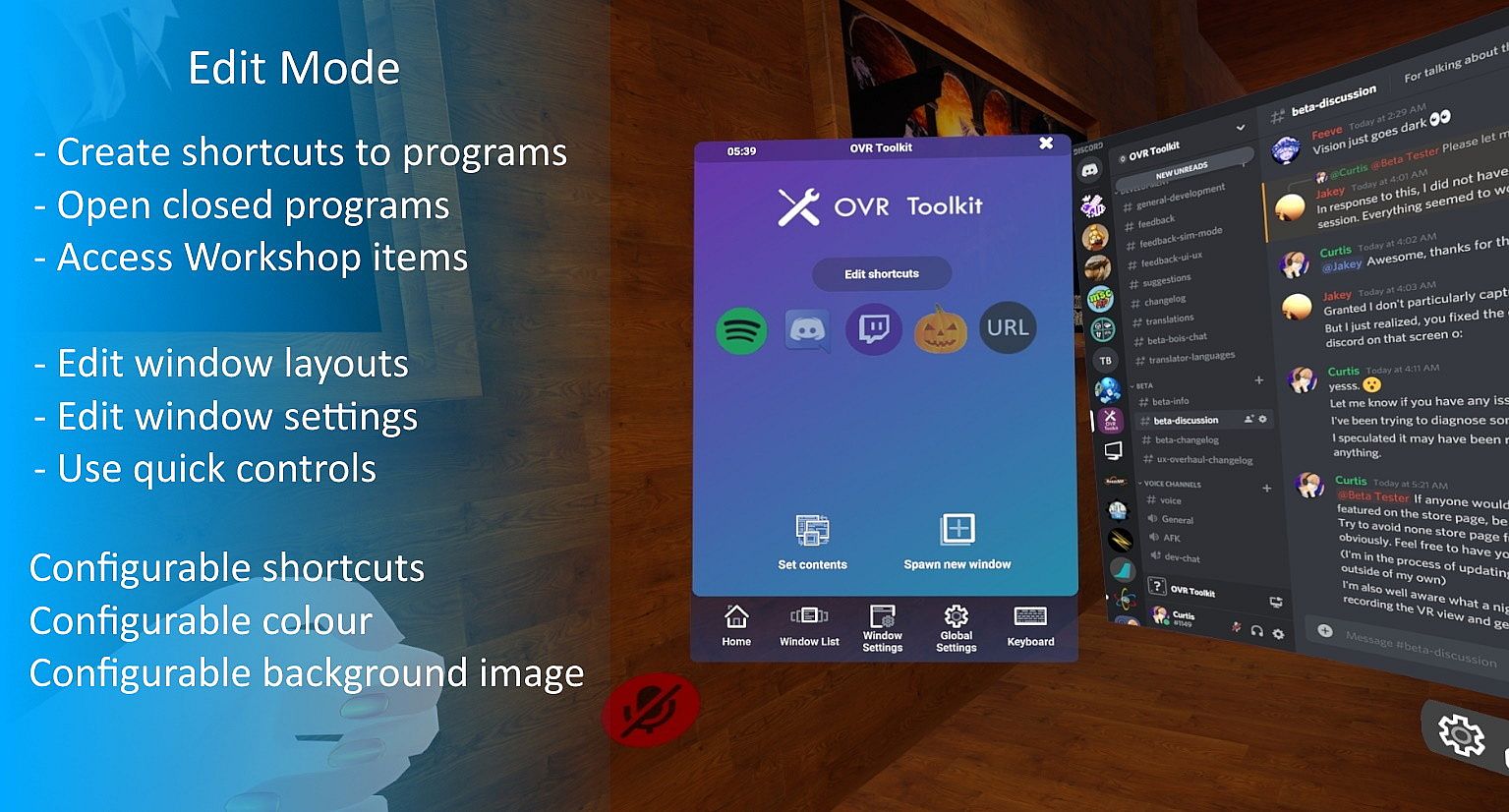
- Quick selection of desktop windows: OVR Toolkit contains a configuration 'hotkey' menu that allows you to bind buttons on its UI to switch between specific windows in one click.
- Intuitive desktop input: Scroll up and down on windows by dragging, make a selection by dragging, like using your finger on a phone but with a VR controller instead! (This makes a lot more sense than it sounds like it does!)
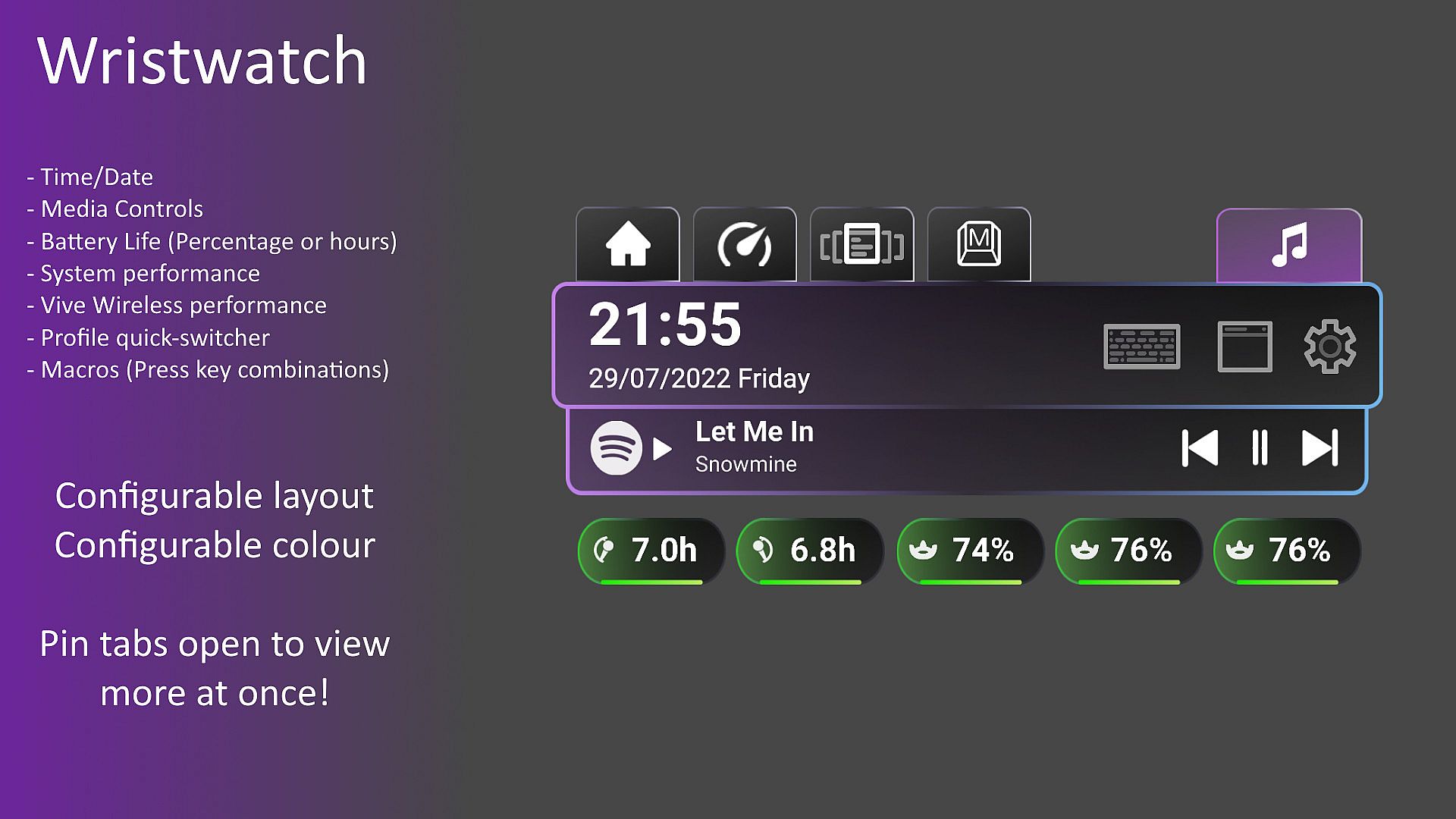
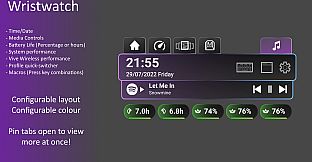
- Wristwatch: An overlay displayed on your hand that displays the time, date, as well as Vive/Index controller/Tracker battery percentages, as well as other values such as CPU/GPU/VRAM usage.
- Saving/Loading configurations: Like that sweet setup you've made? Well, now you can save it, and load it again next time you launch!
- Advanced settings for window capture: Want that 60 FPS window capture experience? Want to make a window slightly transparent so it's less in the way? Want a window to disappear when you're not looking at it? Or when it's past a set distance from you? You can do these with our advanced settings!
- Eco Mode: When enabled, performance mode will lower the capture rate of windows you are not using, this drastically increases performance and lowers CPU usage significantly!
- Basic media controls: Spotify currently playing song will show on your wrist, along with a play/pause, skip, and previous button. (These buttons will work in other music players too)
- Windows notifications: Display your Windows notifications in VR such as Discord messages, 'Your Phone' notifications, and anything else that would typically appear on your desktop as a push notification.
- Macros: Create macro keybinds which can be activated by a click on the wrist to trigger a series of key presses. (Such as changing OBS scenes, muting/un-muting Discord, etc.)
- Paste to Game: Clicking the Paste button found under the keyboard will automatically tab in the currently running game and push Ctrl and V. (Can be used to paste links into VRChat video players, paste join codes into codes, etc.)
Customization
- Customize the background (wallpaper) and logo on the phone-like UI.
- Choose between several accent colors for various parts of the UI.
- Create hotkeys on the home page that show application's icons and allow you to quickly access your commonly used applications.
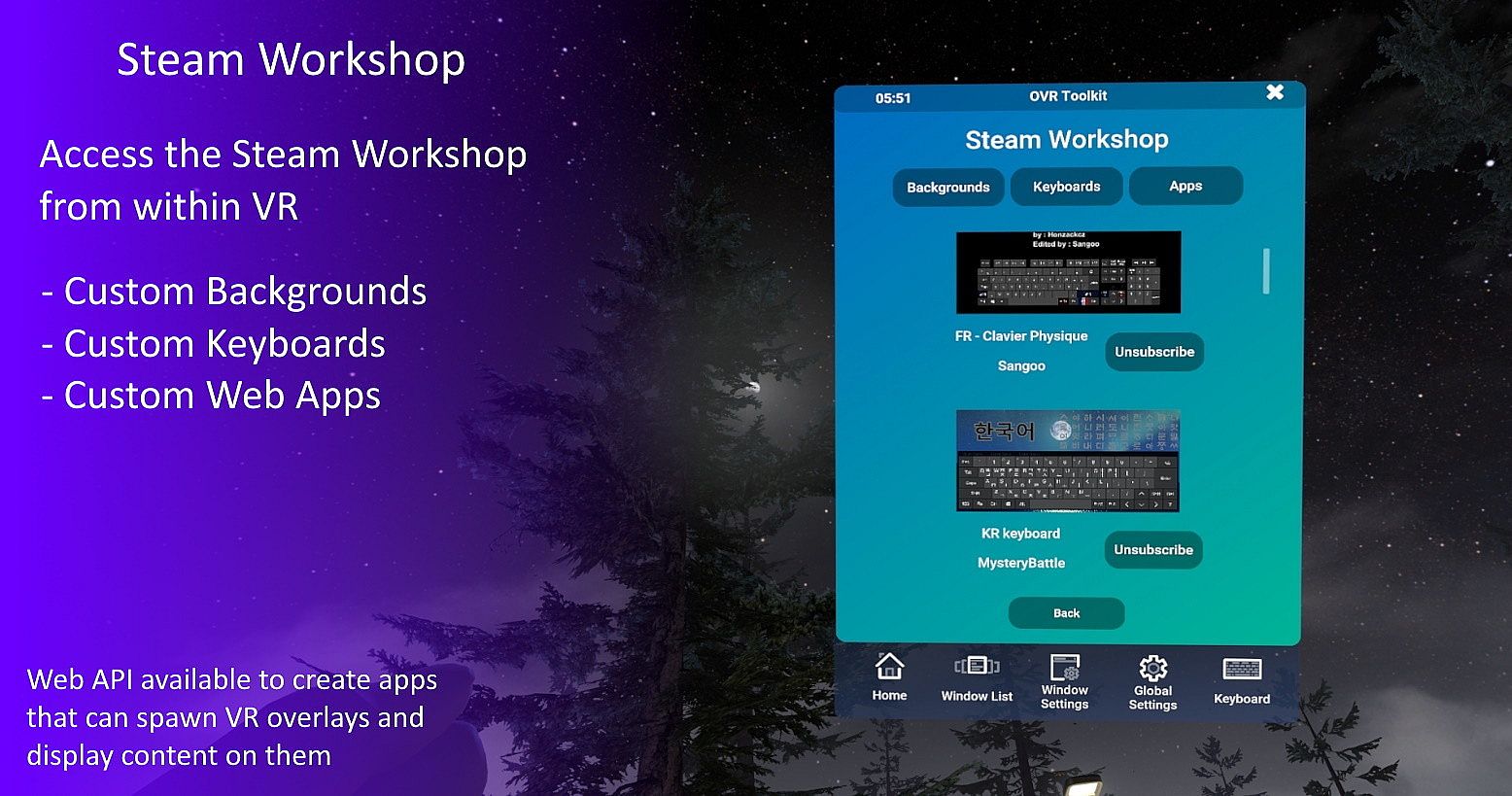
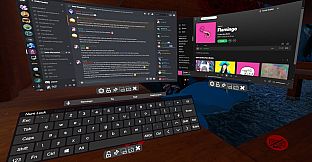
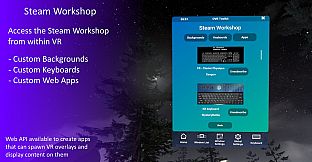
- Customize keyboard layouts! All keyboard layouts are community made within Unity and documentation is provided so you can do this yourself. (Want the keys to spell out funny things like you're in high school again? Now you can!)
- Custom Apps allow web developers to integrate web apps into OVR Toolkit, allowing for integrated Twitch chat and games to be made.
Simulator Mode - Controller-free mode
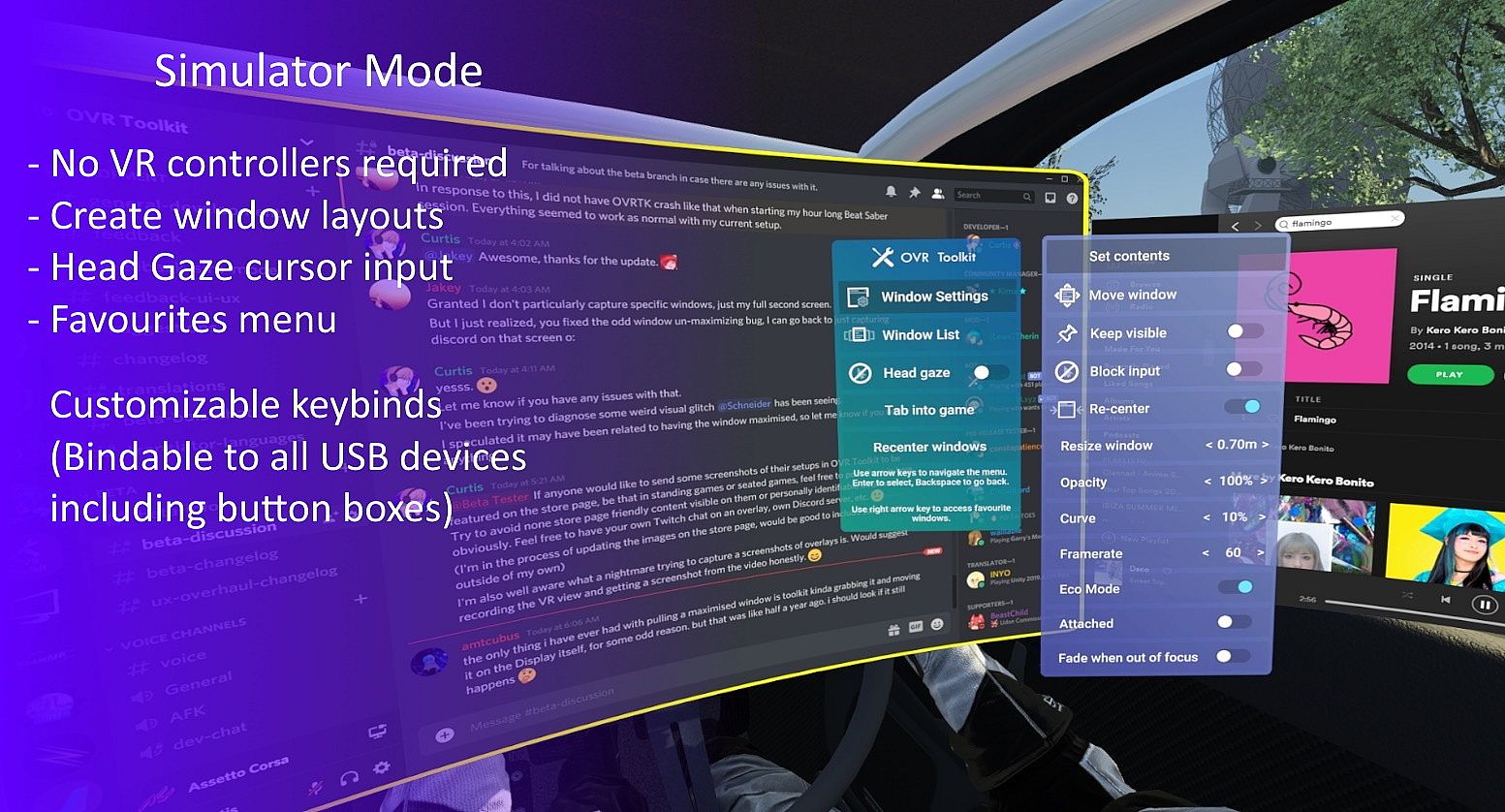
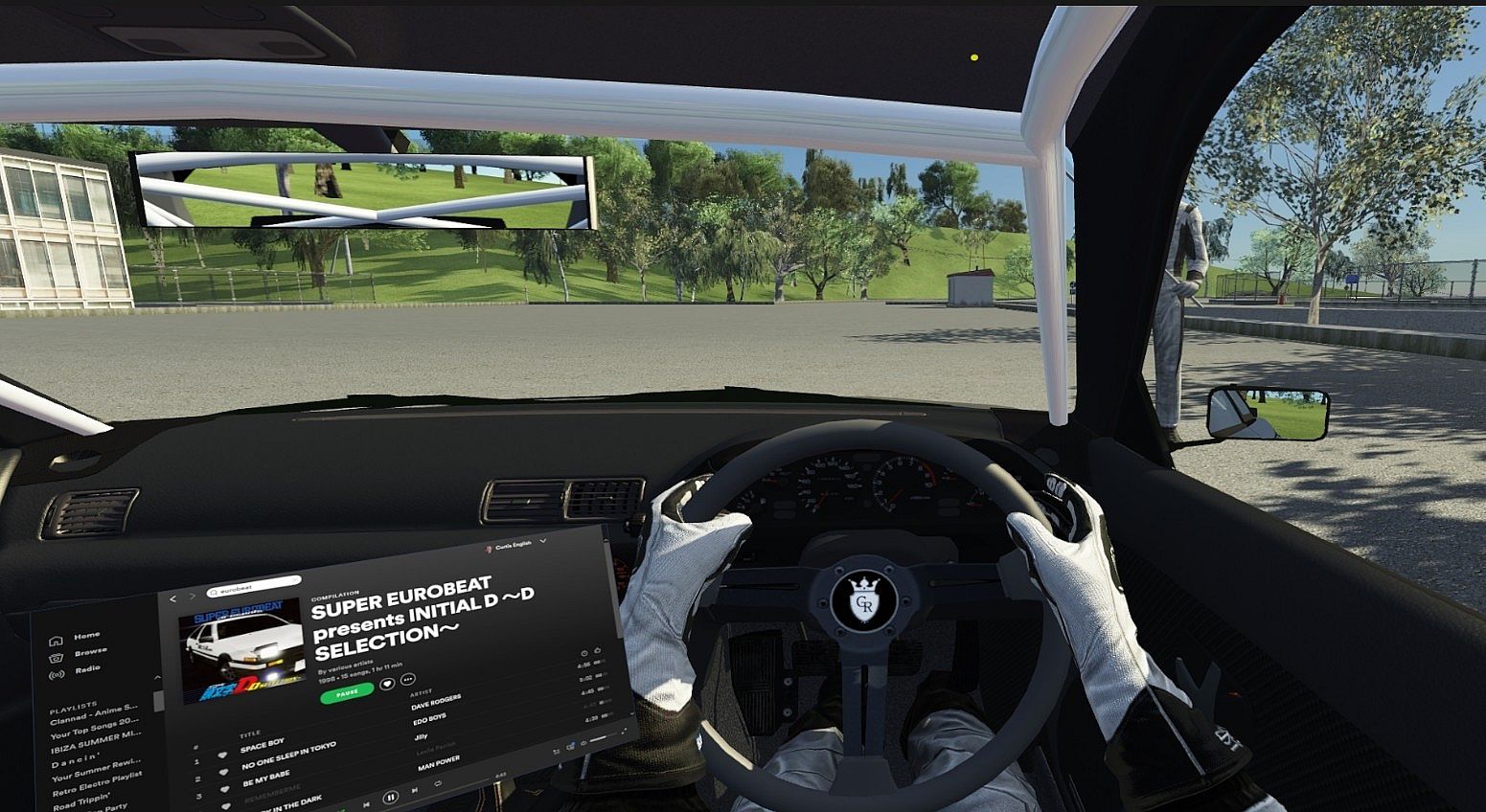
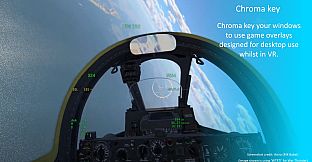
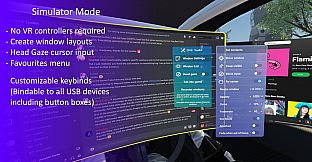
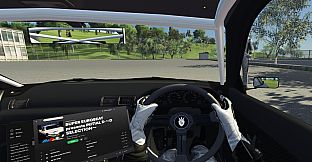
'Simulator Mode' is a controller-free mode available in OVR Toolkit. In this mode, you can interact with windows using head gaze, and use keyboard binds to move windows around you and change their settings. This mode is perfect for those intending to use OVR Toolkit at a desk or whilst in a sim racing/driving/piloting game!
(This mode is still a work in progress, provide feedback in the OVR Toolkit Discord!)
- Move windows with keyboard binds when you have no controllers connected.
- Control your cursor position with your head using head-gaze input.
- Pin windows around you in your play space to view whilst in games. (Race overlays, etc.)
- Quickly toggle open windows with the 'Edit Mode' bind to show/hide some applications such as Discord, web browsers, etc. whilst in games.
- Voice Attack ready. (All controls are easily repeatable with the same keyboard key presses to support Voice Attack)
- Bindable voice input key using Google Speech to type out a sentence into a text box you have selected.
Important stuff you should know about
We've tried our best to make OVR Toolkit support everything, but that just isn't how this world works!
Please take these compatibility notes in mind before purchasing:
- OVR Toolkit requires being launched as admin, this is due to the inability to capture programs that are running as admin without running OVR Toolkit as admin, so it's needless to say a Windows account with admin privileges is needed. (If you're the only user of your PC, this is probably you)
- OVR Toolkit only supports Windows 10 and 11. (This is due to the desktop capture API we use which was only introduced in Windows 10)
- Oculus users, don't launch OVR Toolkit through Oculus Home as it will launch the application incorrectly! Use Steam/SteamVR instead! You can set OVR Toolkit to auto-start with SteamVR by referring to our wiki!
- Oculus' software will sometimes overlay over our overlay. (This is because Oculus' software displays separate to SteamVR, our application will always display whilst SteamVR is active or you're playing a SteamVR game, just not when you open the Oculus Dashboard)
- Oculus users, refer to the OVR Toolkit wiki 'Oculus' page for how to make OVR Toolkit appear in your games!
- We cannot display our application over Oculus SDK games. (Our application uses SteamVR to display, though, most Oculus games will have a SteamVR mode, we advise you use this!)
- Running games through SteamVR on an Oculus headset may decrease performance, this is not an issue specific to OVR Toolkit. This is due to Oculus rendering the same image twice, once when SteamVR compositor renders the output, then again when Oculus Runtime renders the output. Unfortunately, this is something only Oculus/Facebook can fix!
- Windows Mixed Reality users may experience decreased performance running SteamVR games due to double rendering. Please try performance with your games running through SteamVR before you purchase OVR Toolkit. (Most noticeable effects with Flight Simulator 2020)