


This product is available natively in English, but it has automated translations for most major languages.
Contents: Mouse Accelerator ()
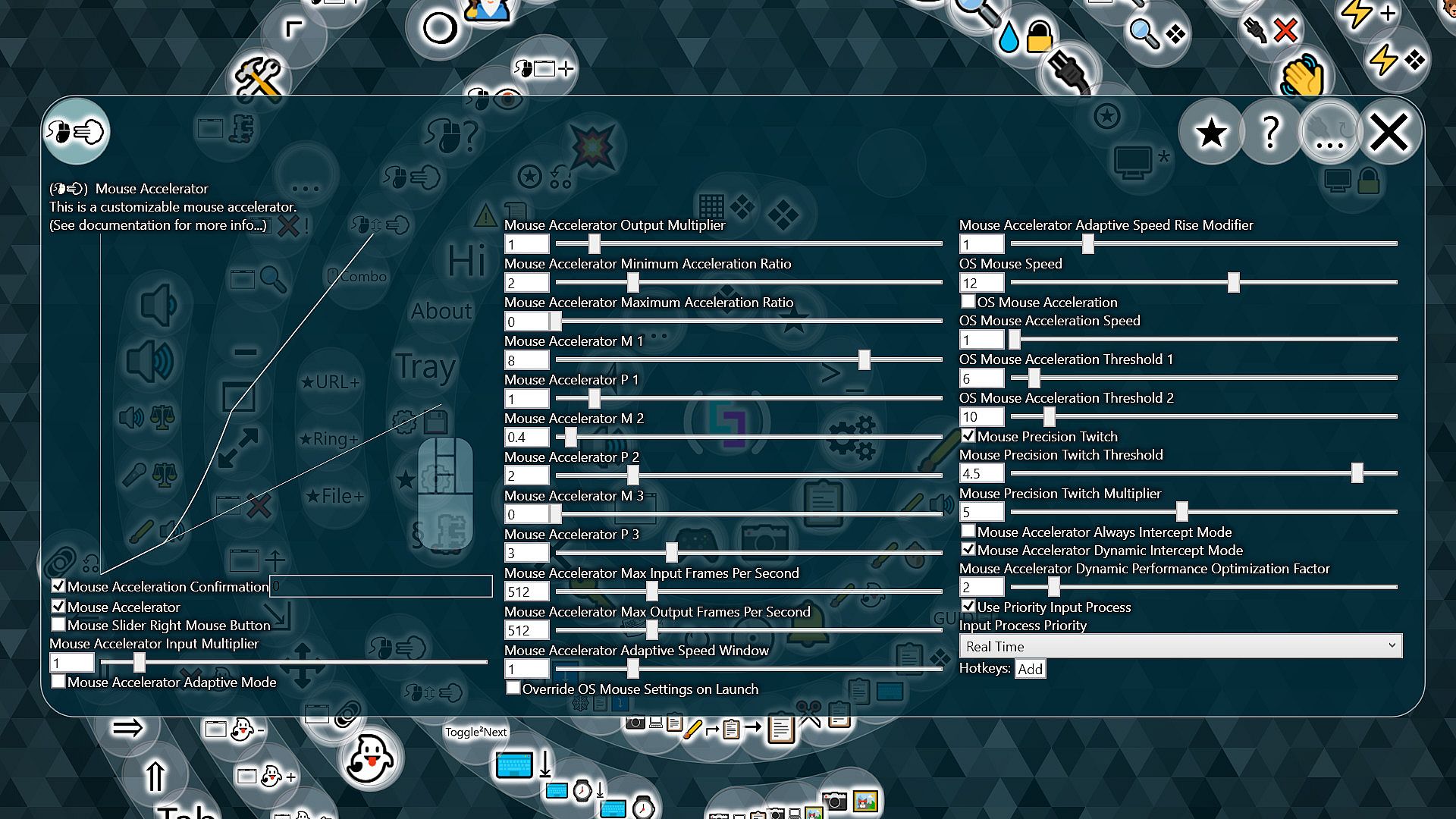
Mouse Accelerator ()
This is a customizable mouse accelerator.- This accelerator works without any DLL injections, so there is reduced chance that a game might falsely identify it as a cheat. However, unlike driver level modification, this tool makes no attempt to hide the source of the input, so it would be easy for a game to see that the mouse input was modified.
- Some games disable operating system mouse acceleration but will still be accelerated by this custom accelerator.
- The custom curve formula looks something like this: ∑(m*v^p) with v being cursor velocity, m being each multiplier setting and p being each power setting. The custom curve formula may be expanded in future versions, as it does not provide as much curve customization capability as I would like.
- The mouse acceleration features are intended for cases when you can't find a direct mouse speed that is both fast enough and precise enough for your needs. I recommend getting used to direct 1:1 input with no acceleration if possible, so you will pretty much be able to use the same muscle memory everywhere, even on devices that do not have this tool installed.
- I believe that major operating systems each use their own signature mouse acceleration settings primarily to help lock you in to their system. Once you get used to their mouse acceleration, attempting to switch to a competitor will feel weird and possibly help persuade you to give up and return.
- Using any input modification features puts you at risk with multiplayer gaming. Each game has its own rules on where it draws the line between cheating and not cheating. Some don't care, some will kick you, and some might ban you. This product does its part in cooperating with anti-cheat software by not hiding the source of input, so any game could easily ignore injected input if programmed to do so.
- This feature has a low risk of being considered cheating in multiplayer games. When it comes to aiming, games designers are typically worried about automatic aiming and precision firing tools which use live information gathered from the game you are playing to give you an advantage in the game. This feature, on the other hand, is really just changing the behavior of your mouse, using only information from prior mouse movements.
- Mouse Accelerator (Default: False)
Enables the Mouse Accelerator - Mouse Acceleration Confirmation (Default: False)
This is used to record whether or not you have tested your mouse acceleration settings. If you don't confirm your settings, the mouse accelerator will automatically shut off after a delay to prevent you from losing access to your mouse accidently. Once you confirm your settings you can toggle them on and off without confirmation. Any changes will require a new confirmation. - Mouse Slider Right Mouse Button (Default: False)
When enabled, it causes the mouse to slide according to recent movement while the right mouse button is pressed. - Mouse Accelerator Input Multiplier (Default: 1)
This is a simple input multiplier for the custom mouse accelerator. This could be helpful if you change the hardware DPI of your mouse and want a simple way to get your old curve behavior back. - Mouse Accelerator Output Multiplier (Default: 1)
This is a simple output multiplier for the custom mouse accelerator. This could be helpful if you like your acceleration curve feel, but just want it to be faster or slower. - Mouse Accelerator Minimum Acceleration Ratio (Default: 1)
If the custom acceleration values are low enough, the accelerator may completely block some mouse events from being registered at all. The value '1' will ensure that the mouse will never be slower than having no acceleration at all. Lower values can enable you to slow down the mouse passed normal limits, where some mouse input events will not be forwarded to other programs. Higher values will act as a direct multiplier to mouse input. This multiplier only acts when the mouse acceleration parameters do not have greater acceleration than this value. This value puts a floor on your mouse accelerator curve. - Mouse Accelerator Maximum Acceleration Ratio (Default: 3)
This setting can put a ceiling on your mouse accelerator curve. The mouse acceleration ratio will not be allowed to be greater than this value. You can use this to construct your own Precision Twitch acceleration profile, as your mouse will have a one to one correspondence with the cursor for movements above this limit. Set it to 0 to disable it. - Mouse Accelerator Curve Type (Default: Custom)
- Custom: Set your mouse acceleration curve to a custom trinomial.
- Precision Twitch: This feature forces a mouse acceleration curve that gives 1:1 mouse behavior for twitch movements, but enables additional precision for very slow mouse movements. - Mouse Accelerator M 1 (Default: 1)
Multiplier 1 - Mouse Accelerator P 1 (Default: 1)
Power (Exponent) 1 - Mouse Accelerator M 2 (Default: 0.1)
Multiplier 2 - Mouse Accelerator P 2 (Default: 2)
Power (Exponent) 2 - Mouse Accelerator M 3 (Default: 0)
Multiplier 3 - Mouse Accelerator P 3 (Default: 3)
Power (Exponent) 3 - Mouse Precision Twitch Threshold (Default: 3)
This option determines where to draw the line between mouse movements that should have 1:1 behavior and movements with enhanced precision. Higher values will apply enhanced precision to greater speed mouse movements, where lower values will make slower movements have 1:1 behavior. - Mouse Precision Twitch Multiplier (Default: 3)
This option controls how much twitch movements will be multiplied. Higher values here increase the difference between twitch movements and enhanced precision movements. - Mouse Accelerator Max Input Frames Per Second (Default: 512)
Lower values reduce load on the processer caused by the accelerator. Higher values can increase the precision and responsiveness of the accelerator. - Mouse Accelerator Max Output Frames Per Second (Default: 512)
Too high of values can make weird things behave sluggishly, like resizing windows. You can manually type in higher values than the slider will allow for mice that poll at faster rates. - Mouse Accelerator Adaptive Mode (Default: False)
Basically, this is a hybrid approach between having mouse acceleration and not having mouse acceleration, where you get closer to the feel of 1:1 mouse movements than with traditional mouse acceleration, but you still get the acceleration properties allowing for additional precision when moving the mouse slowly and additional speed when moving the mouse quickly. It works by smoothly transitioning between linear acceleration and your chosen curve depending on how fast you have been moving the mouse in a recent time window. - Mouse Accelerator Adaptive Speed Window (Default: 1)
The adaptive speed window is the period of time which the accelerator will look at previous mouse movements to establish an acceleration baseline. Higher numbers increase the amount of time it takes for the acceleration factor to reduce. - Mouse Accelerator Adaptive Speed Rise Modifier (Default: 1)
Values higher than 1 will cause the adaptive accelerator to respond more quickly to increases in acceleration. If you set this value less than one, the adaptive speed fall off will be faster than the rise. - Override OS Mouse Settings on Launch (Default: False)
If enabled, this tool will override operating system settings for mouse speed and acceleration upon launch. This does not affect custom acceleration settings. This option is mainly for forcing your saved settings in case they get overwritten while the tool is closed. - OS Mouse Speed (Default: 10)
As this value increases, the speed of the cursor increases. This value is in effect even when custom acceleration is in use. If you have a DPI selectable mouse, I suggest you keep the DPI all the way up, and use these configurations to make the speed manageable. This way you will get the maximum amount of precision out of your hardware. Lack of precision may cause your cursor to routinely skip pixels even when moving at the slowest possible speed. - OS Mouse Acceleration (Default: True)
If enabled, the operating system will use its own mouse acceleration mechanism. - OS Mouse Acceleration Speed (Default: 1)
Raising the value seems to make the cursor even slower at low speeds and faster at high speeds. - OS Mouse Acceleration Threshold 1 (Default: 6)
Controls the threshold at which the cursor ought to be moving at double speed. - OS Mouse Acceleration Threshold 2 (Default: 10)
Controls the threshold at which the cursor ought to be moving at quadruple speed. - Mouse Accelerator Always Intercept Mode (Default: False)
Intercept mode can increase performance of some weird things, like resizing windows. Also, it can make the acceleration smoother for speed multipliers less than 1. When enabled, standard mouse messages are intercepted and included in the mouse accelerator calculations, thus reducing the total number of messages being sent in many cases. Unfortunately, this optimization can also cause the mouse to go unresponsive if Simplode Suite Long Debug is too busy. Another potential drawback of this setting is that the mouse curve may not behave exactly the same inside some games as it does on the desktop. A major advantage of the custom mouse accelerator is the ability to obtain the same acceleration curve in multiple environments, because when the behavior does not match it can interfere with muscle memory. So, if your applications perform well with this feature off, you may be better off disabling this feature so that you can avoid losing the advantages of a uniform mouse feel. - Mouse Accelerator Dynamic Intercept Mode (Default: True)
Dynamic intercept mode recognizes some specific scenarios where intercept mode might greatly improve performance, like resizing windows, and will temporarily enable the effects of the intercept mode. This can also avoid the drawbacks of intercept mode for the most part. - Mouse Accelerator Dynamic Performance Optimization Factor (Default: 2)
Some types of operations have been found to perform poorly when given mouse input at high rates, such as resizing and moving windows. With values greater than one, the output framerate will be divided to improve performance during these operations. This option goes well with dynamic intercept mode. - Use Priority Input Process (Default: True)
Runs input features in a separate priority process to avoid input lag. - Input Process Priority (Default: Real Time)
Select the desired priority for the input process. I think "Real Time" will get you the best results, but perhaps you have a different sort of environment where it is not allowed or you are just uncomfortable with "Real Time".
- Normal
- Idle
- High
- Real Time: Real Time priority processes will generally get all of the processing time they want, and if they want too much it can cause your system to become unstable.
- Below Normal
- Above Normal